Showing posts with label Blogger. Show all posts

Thursday, 16 June 2016

How to Add a Meta Description to Blog or Website Page

An important part of a good SEO is the implementation of meta tags, which are commonly located in the header of our website, that are being, in the same time, invisible to users visiting the site. Well, to be more succinct, these tags have only one purpose: to include information about the page such as author name, date, key word, description, title, among others.

However, here we will only mention one, which is the meta description in Blogger. This description will appear as a fragment in the search results and as a description when sharing on Google+, Facebook and other social networks. A clear and precise description increases the chances of getting more clicks or visits.
As we will work only on the Blogger platform, here I will leave a little guide to easily add a meta description.

Meta Description in Blogger

The first thing we will do is going to our Blogger dashboard and from there, go to Settings > Search preferences > Meta Tags > Description and click on Edit.
meta description

Then check the box "Yes" to enable search description. Finally, click the "Save Changes" button.

Adding Meta Description To individual Posts

Now we will focus on adding the meta description to individual pages. Simply edit the page or post, look for the Search Description setting, and there we enter the text and save by clicking the Done button.

And that's it. However it is best to test if it works and we will do so with the MetaChecker online tool, where we only have to introduce the url of a post or page, click Analyze and then it will show the results, including a complete analysis of keywords, on-page seo , meta tags, URLs, current server status and a rating bar that goes from Horror to Excellent.

If none of the meta descriptions appear (rarely fails), we can do the process manually, but it requires us to touch a bit of code. In this case, go to Template > Edit HTML and insert before <b:skin><![CDATA[ the following code:


<b:if cond='data:blog.metaDescription != &quot;&quot;'>
  <meta expr:content='data:blog.metaDescription' name='description'/>
</b:if>
Of course, we will use again the previously mentioned tool to ensure that the description is placed correctly and if all goes well, our blog would be ready to face a good SEO.

Thanks and stay blessed!

Friday, 3 June 2016

How To Set Up a Custom Domain in Blogger

Our web today is a wonderful place. It's increasingly become a knowledge hub for strollers around the globe. And you know what the best part is? It does not have a religion, race or color, that's where perhaps its strength lies in. Point being, no matter what you are after, from details of products to how to use them, from fruit varieties to language origins, from how to hack
Facebook account to how to set up a custom domain name in Blogger. Each and everything is there, in abundance and easily available. Now I know you are here to understand how you can setup/host your custom domain on your Blogger account. So let's get on with it, without further delay. 

Before we start
It's important that you realize, it isn't difficult to add a custom domain into your blogger account. If you are a blogger, it's perfect if you already own your own blog, it shows your passion and love for blogging and provides you with freedom to move from one platform to another, when and if you need. Also from users perspective, it's much easier for them to remember and visit your blog at customized address like myblog.com thanmyblog.blogspot.com.

One of the best things about Blogger is that it does not push you to host your site with blogger. It is entirely your own choice to choose from either of two hosting plans 'hosting on BlogSpot' with address myblog.blogspot.com, or going with a custom domain with address myblog.com.

Some Popular Web Hosting Sites:

If you don't already have purchased yourself a custom domain, these are the places that you should be looking for to get one:

- EasyDNS
- 1and1
- GoDaddy.com
- Yahoo! Small Business
- No-IP
- ix web hosting

So now if you have bought yourself a domain, from either of these you would have an IP address and a name. Let's assume our is 'mynewdomain'.com.

Well, it's time to start adding a custom domain to your blogger account.

Remember:

Here we are using setup for GoDaddy.com, the most popular domain name provider. For custom domains from other sites, the steps are almost same, so don't vanish.

Setting Up Blogger Custom Domain

Step 1. Login to your Blogger account at www.blogger.com.

Step 2. Click on your blog and then go to "Settings", choose "Basic".

blogger custom domain

Step 3. Under "Publishing" section, click "+ Setup a 3rd party URL for your blog".

Step 4. Under "Third-party domain settings" next to "http://" type your domain that you just purchased and make sure that you don't forget to add the "www" prefix to the domain name.

set up custom domain in blogger

Step 5. Click "View settings instructions" to get the blogger's official instructions. On the Blogger instruction page, choose the "On a top-level domain (www.example.com)" option.

custom domain in blogger

Step 6. Under the point 9 of instructions, 4 IP addresses will be given, copy and save all 4 of them.

Step 7. Go back to your Blogger Settings and press Save. It won't get saved and an error will appear saying 'We have not been able to verify your authority to this domain. Error 32.'

setting up blogger custom domain

Step 8. Under the error, you will see two fields "Name, Label or Host Field" and "Destination, target, or Points To" field. Copy data of both rows from these fields.

Step 9. Now log in to your GoDaddy.com account and click on "My account" on the upper right corner > select "Manage my Domains".

godaddy manage domains

Step 10. Here you should see your purchased domain name > just click on your domain name.

godaddy domains

Step 11. Click on the "DNS Zone File" tab next to Settings and choose "Use Classic DNS Manager".

use classic dns manager

Step 12. Next, click the "Edit" button to edit your DNS Zone File. 

blogger custom domain

Step 13. Under the "CNAME (Alias)" menu, click "Quick Add" button at the bottom of the screen (see image 1 in the below screnshoot).

Step 14. In the Edit box that now appeared, enter "www" in the first box and "ghs.google.com" in the second.

blogger custom domain

Step 15. Click "Quick Add" again and enter details from second row of the data we saved in step 8.

Step 16. Under the "A (Host)" menu, again choose Quick Add (see the below image).

Step 17. Host will be @ and the "Points to" value should be the one provided by Google IPs, saved in step 6 above. These are the Google IPs that you should get: 

216.239.32.21
216.239.34.21
216.239.36.21
216.239.38.21
Step 18. Add all 4 of them one by one and delete old host as you won't need it anymore. 

custom domain in blogger

Step 19. At the top of the page, click on the "Save Zone File" button to save your setings.

Step 20. Now go back to Blogger and try to save settings again. The registration process takes 24-48 hours, so don't worry if you get an error again. Come again later to Blogger after 24-48 hours, repeat step 2 to 4, press Save and the error should be gone.

Step 21. After your URL starts working, click on the "Edit" link next to domain name on setting page.

Step 22. Check the "Redirect... to..." checkbox below your site address to ensure that even if the visitors will miss out the www part, they will still be able to reach your site.

blogger custom domain

Step 23. And that's it. Enjoy your new URL!

So this was easy, right? Only a handful of steps and we have successfully completed our mission of adding our custom domain in our blogger account. In case you haven't yet, stay patient wait for 2 days and try again. Or repeat steps 1-22, and make sure you don't miss any. Otherwise your new URL is ready and all set to roam around the wonderful world of web.

Connecting Your Domain to Your Blogger or Blogspot

Google provides free blogging if you sign up for their services, and allows you to point your personal domain to it. There are two parts to this process. First, setting up your blog account to permit this, and secondly, configuring the DNS for the domain with easy DNS.

Setting Up Your Blogspot Account

1. Log into your blog with Google

2. Click on the dropdown menu and choose SETTINGS
3. Under the PUBLISHING section, click on the +SET UP THIRD PARTY URL link
4. Enter your domain with www in front of it (i.e. www.easydnsdomain.com) and click SAVE

Once you've clicked on SAVE, you should see an error message similar to the following:

Within the error message you should see two sets of CNAME records. This is the information Google uses to verify that you are indeed the owner of the domain name. You will need to take these two records and put them into your DNS settings. *DO NOT CLOSE YOUR BLOG WINDOW WHILE YOU DO THIS!*


Setting Up Your easy DNS Account
  1. Log into your easyDNS account
  2. Click on the DNS link for said domain (this will bring you to the DNS SETTINGS page
  3. Click on the MODULAR EDITOR tab
  4. Click on the wrench tool for ALIASES CNAME RECORDS
This is where we enter the two CNAME records Google provided us on their error page (please see screenshot for Step 4 from above). Please note that both the www and the short string of numbers/letters will go under HOST while the ghs.google.com along with the longer string will go under ADDRESS.


5. Enter your CNAME records
6. Click NEXT

NOTE: You will see a greyed out error claiming xxxxx is not a valid server. This is normal and you can just ignore this.

7. Confirm your changes
Finalizing The Changes At Blogspot

Once you've put in the CNAME records within your DNS settings, you will need to go back to the blog window with the error message that should still be open. Please do the following:

1. Click on SAVE

You will notice that the error message has gone away. If this is the case then your domain name should be successfully connected to your blog, but you still have a few more steps to complete. If you are still seeing the error message then Google has failed to verify that you are the domain owner. At this point you have a few options. Google has multiple ways to verify domain ownership which is beyond the scope of this tutorial. You can either choose to troubleshoot this yourself through Google's help documents.


2. Go back to the Publishing section for your blog and click on EDIT
3. Check off the box and click SAVE


NOTE: The original connection to your domain just connects the root variation of said domain. To connect both the root and www. variation, you will need to check off the box.


Map your domain to Blogger


If you have a domain name and want to map it to your blog on Blogger.com, here’s what you 
need to do:
Login to your account
You will now see a page with all purchases made by you on our system
Click on the domain name for which you want to map to your blog

Click on the DNS Management option to the right of this page
Click on "Manage DNS"


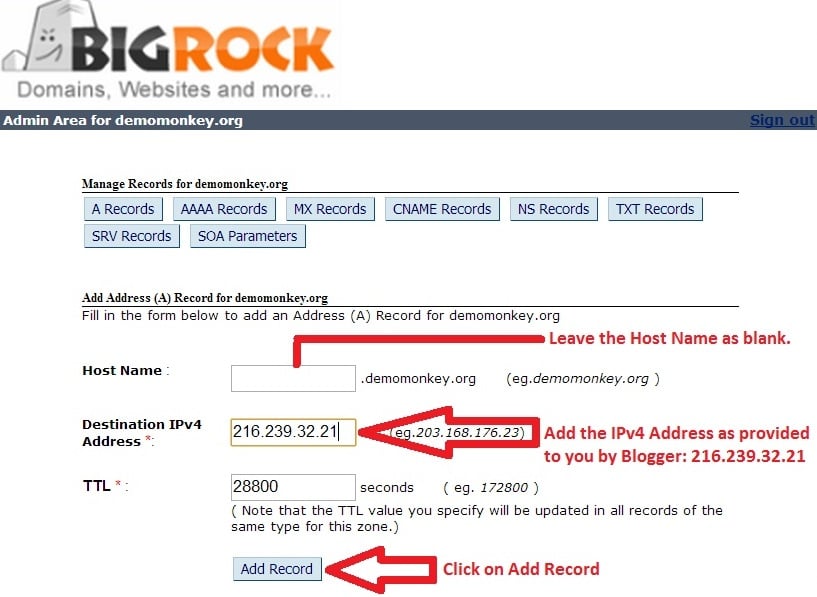
  1. Click on "Add A Record"
  2. Leave the Host Name blank
  3. Enter the Destination IPv4 Address as 216.239.32.21
  4. Do not make any changes to the TTL
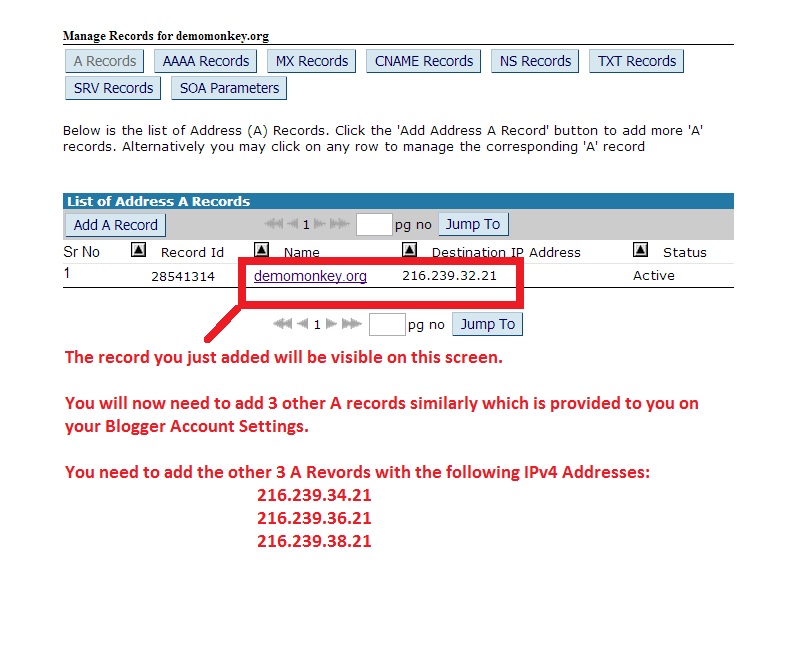
  5. Click "Add Record"
    Blogger Setup
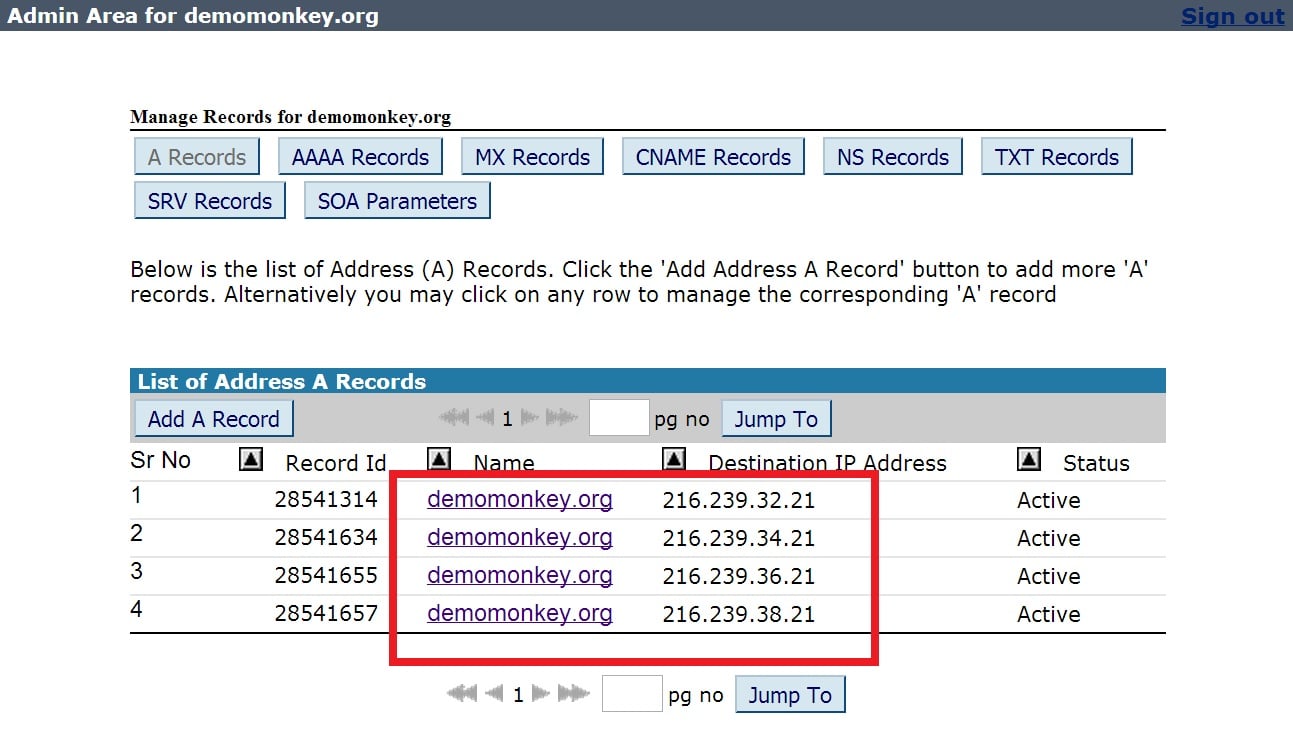
  6. Click on "Add A Record" again follow the same process for these IP addresses one-by-one:
    216.239.34.21
    216.239.36.21
    216.239.38.21

    Blogger Setup

    Blogger Setup
  7. Now you need to set the custom domain name for your blog in your Blogger account. Login to your Blogger account
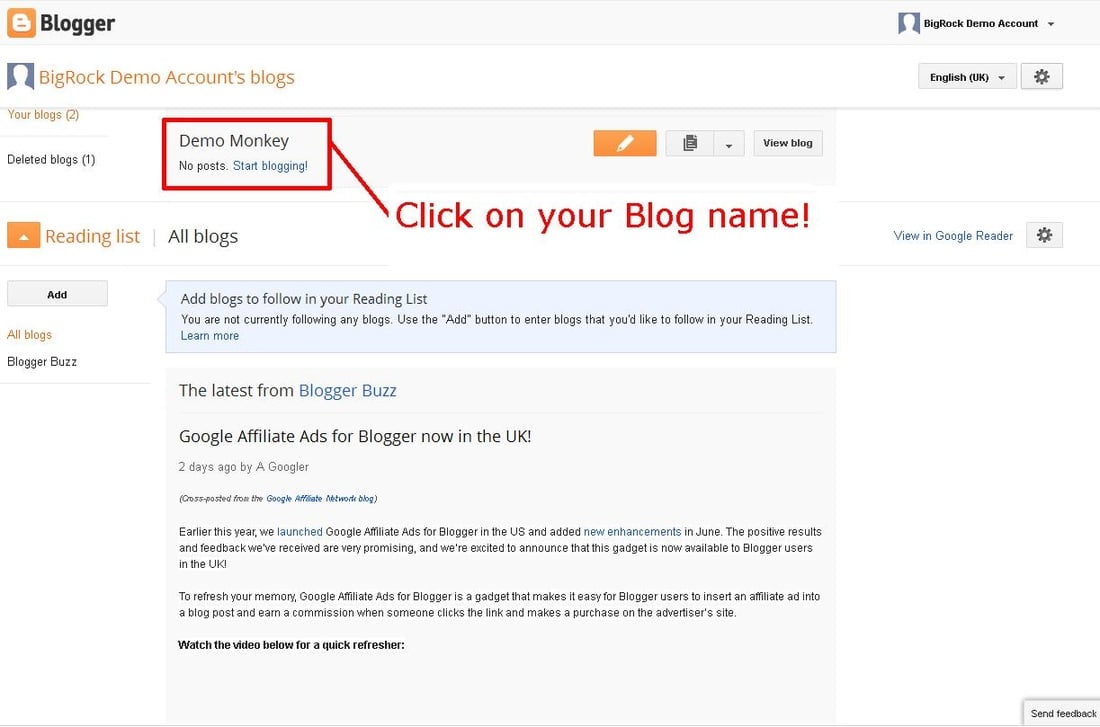
  8. Click on the blog to which you wish to map your domain name

    Blogger Setup
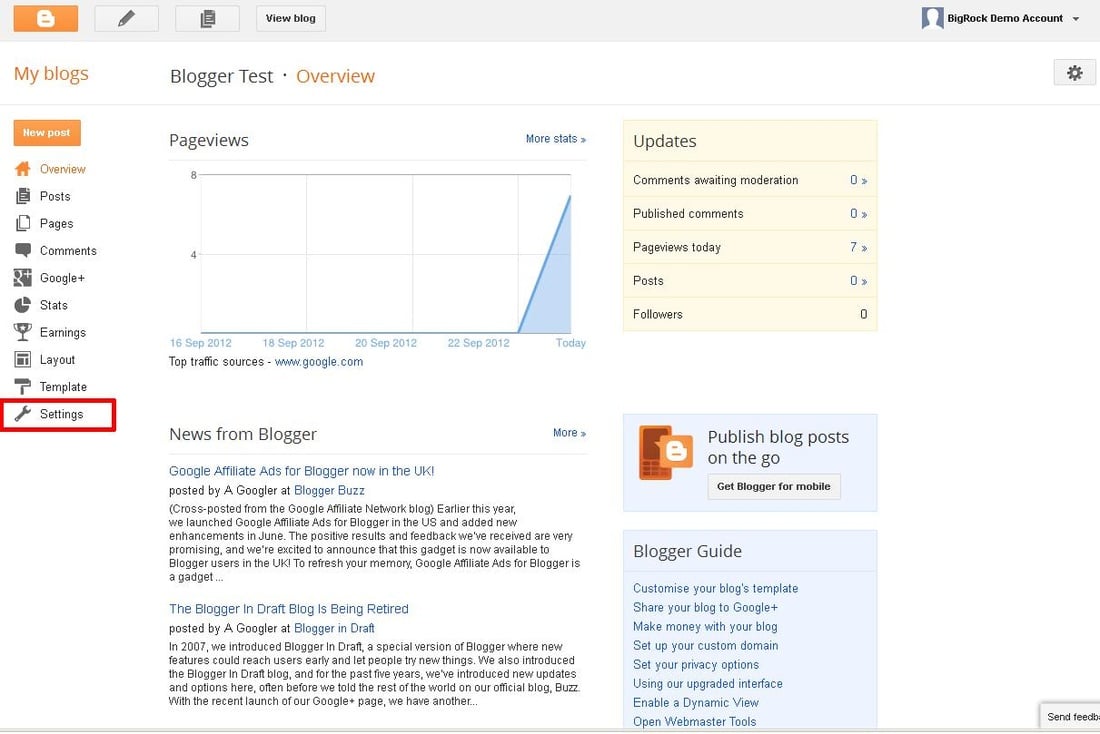
  9. Click on "Settings"

    Blogger Setup
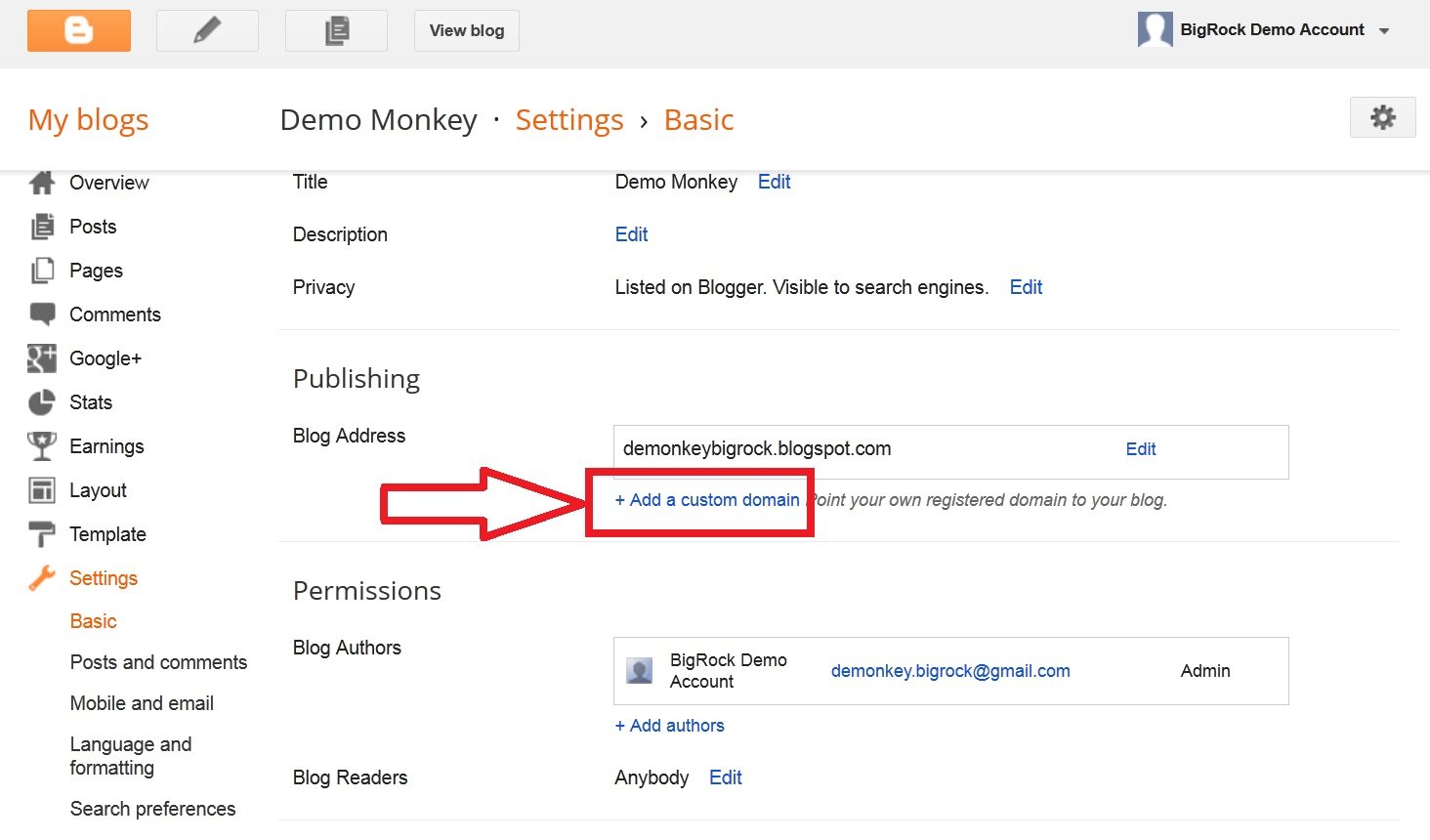
  10. Click on "Add a custom domain"

    Blogger Setup
  11. Enter your domain name
  12. Click on "Save"

    Blogger Setup
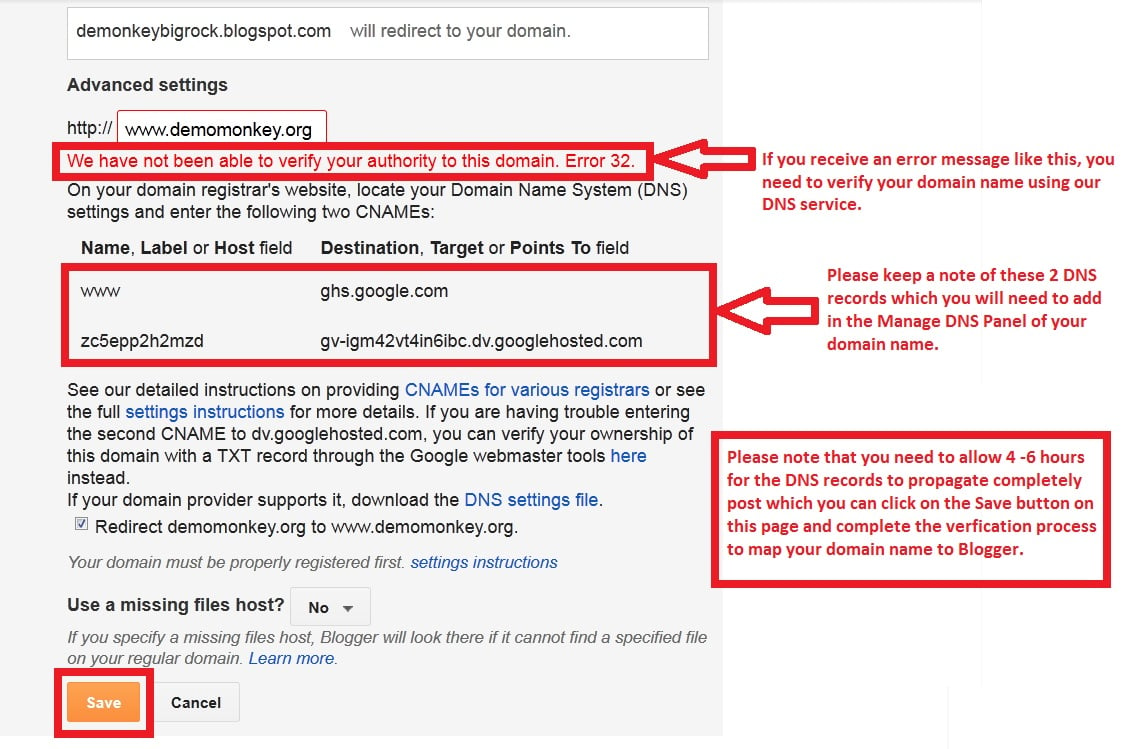
  13. You’ll now get an error message asking you to verify your domain
  14. Blogger will provide you with 2 CNAME records

    Blogger Setup
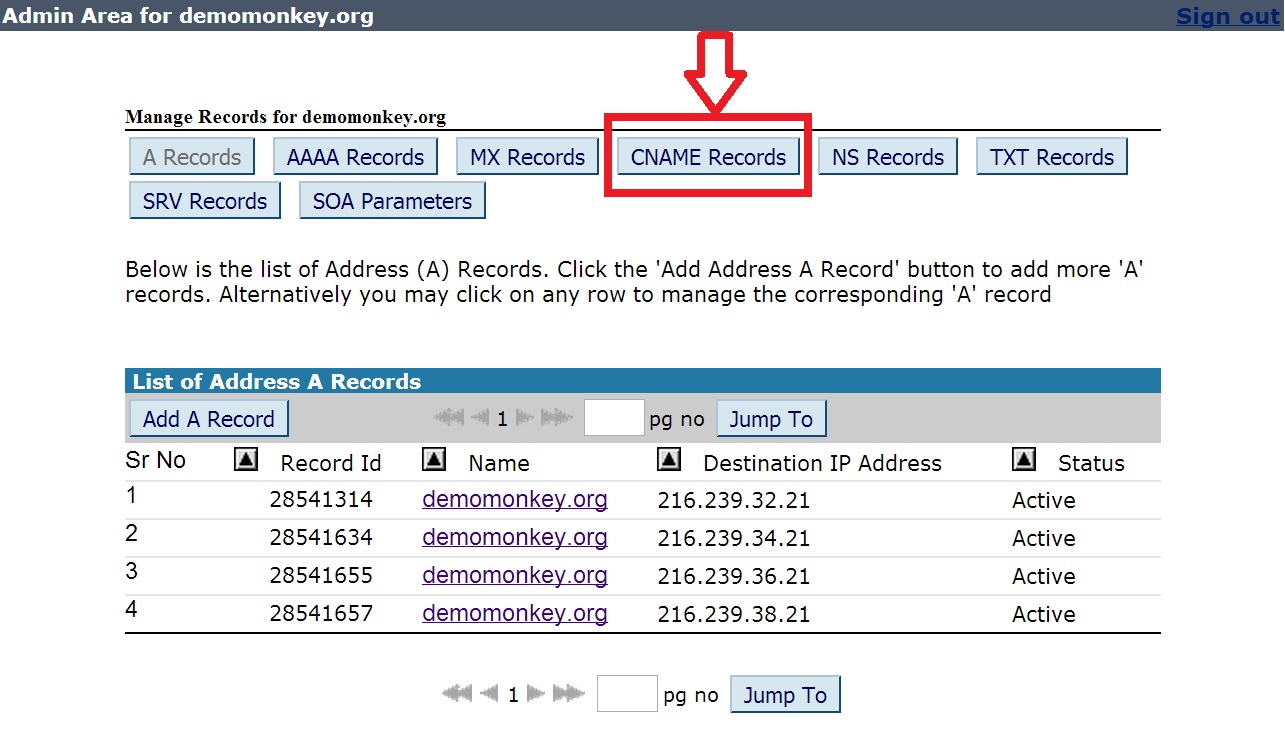
  15. Open the BigRock "Manage DNS" panel
  16. Click on "CNAME Record"

    Blogger Setup
  17. Click on "Add CNAME Record"

    Blogger Setup
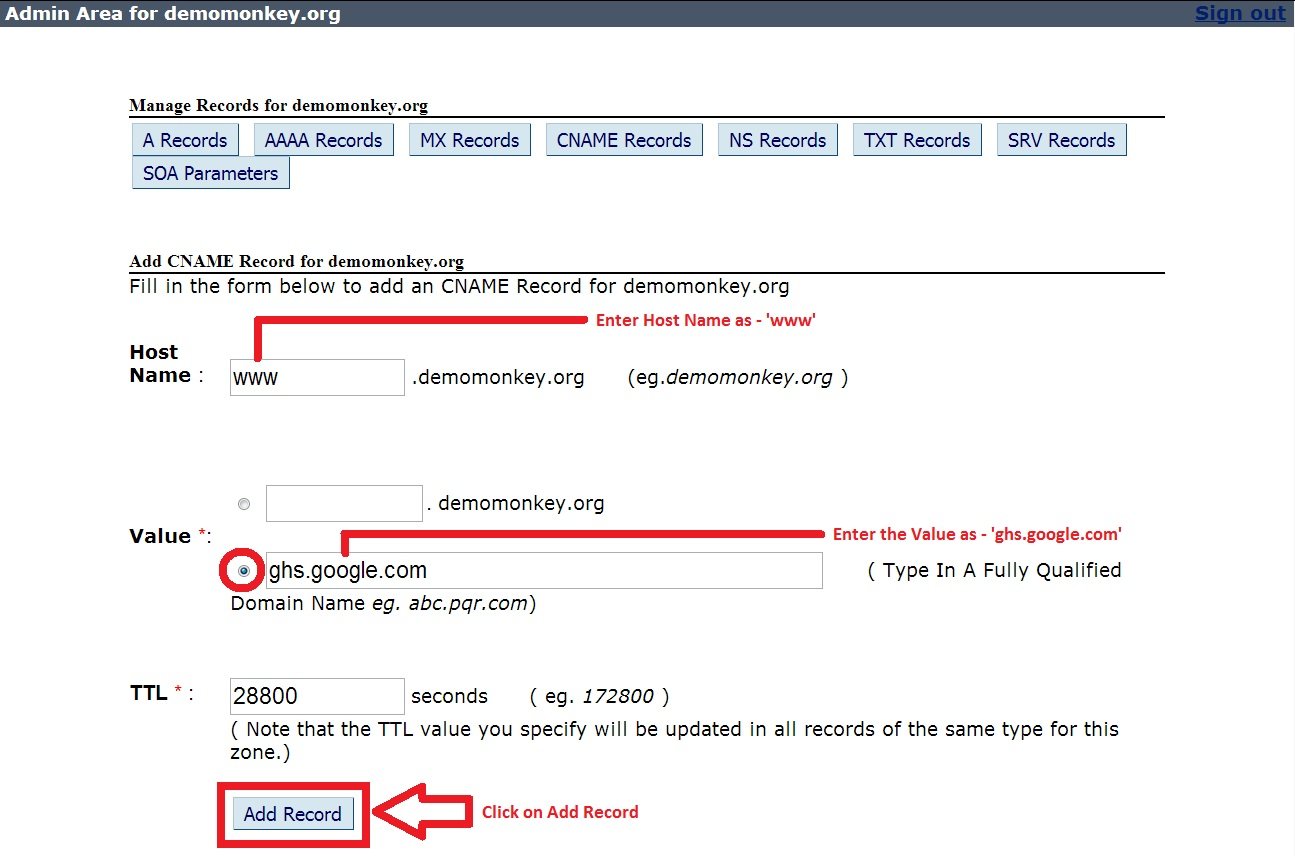
  18. Set the “Host Name” as "www"
  19. Set the “Value” as "ghs.google.com"
  20. Do not make any changes to the TTL
  21. Click on "Add Record"

    Blogger Setup
  22. Similarly add the second record provided by Blogger
Well, you’re all set up. Your domain name will now display your blog hosted on Blogger.